
Introduction
Beginner Tech Guide content helps new users understand smartphones, laptops, websites, applications, internet services, and basic digital tools in a simple way. Technology can seem confusing at first, especially when devices display unfamiliar settings, technical words, or error messages.
Learning the basics can make everyday tasks easier. Users can communicate online, manage files, attend classes, complete office work, protect personal information, and solve small technical problems without depending on others.
This guide explains essential technology skills in clear language. It is designed for students, first-time device users, business owners, older adults, and anyone who wants to become more confident with digital technology.
Understanding Basic Technology
Technology includes devices, software, internet services, and digital systems that help people complete different tasks.
A smartphone is used for calls, messages, photos, banking, social media, and internet access. A laptop can handle documents, online meetings, research, design, programming, and business work.
Applications are programs installed on a device. Some apps are used for communication, while others support learning, editing, shopping, payments, or entertainment.
The operating system manages the device and allows other applications to work. Common operating systems are found on smartphones, tablets, and computers.
Learn the Main Parts of a Device
Before using a smartphone or laptop, users should understand its basic parts.
A smartphone includes a screen, power button, volume buttons, charging port, cameras, speakers, and microphone. Some phones also include fingerprint sensors or memory card slots.
A laptop usually includes a display, keyboard, touchpad, webcam, charging port, speakers, and connection ports.
Knowing these parts makes it easier to follow instructions and identify hardware problems.
Users should also keep charging ports, screens, and ventilation areas clean and protected.
How to Turn a Device On and Off
The power button is usually used to turn a device on or off.
To start a smartphone or laptop, press and hold the power button until the screen appears. The device may take a few moments to load.
To switch it off safely, open the power menu and select the shutdown option. Avoid forcing the device off unless it is completely frozen.
Regularly restarting a device can solve temporary performance and connection problems.
Learn How to Use the Touchscreen
Most smartphones and tablets use touchscreens.
Tapping means touching an item once to open or select it. Double-tapping means touching it twice quickly.
Swiping means moving a finger across the screen to scroll or change pages. Pressing and holding an item may open additional options.
Pinching two fingers together can zoom out, while moving them apart can zoom in.
Practising these basic movements can make touchscreen navigation easier.
Learn How to Use a Mouse and Touchpad
A mouse and touchpad help users control the pointer on a computer.
A single click selects an item, while a double-click usually opens a file or program. A right-click opens additional options.
The scroll wheel moves a page up or down. On a touchpad, users can move one finger to control the pointer and use two fingers for scrolling.
Beginners should move slowly and avoid clicking options they do not understand.
Understanding the Keyboard
The keyboard is used to type letters, numbers, symbols, and commands.
The space bar adds space between words. The Enter key starts a new line or confirms an action.
The Backspace key removes the character before the cursor. The Shift key is used for capital letters and special symbols.
The Ctrl, Alt, and function keys can perform shortcuts, but beginners should first focus on basic typing.
Regular practice can improve typing speed and accuracy.
Connect to Wi-Fi
Wi-Fi allows a device to access the internet without a cable.
Open the device settings and select the Wi-Fi option. Choose the correct network name and enter the password.
Passwords are usually case-sensitive, so capital and small letters must be entered correctly.
Avoid connecting to unknown public networks when accessing banking or private accounts.
At home, use a strong Wi-Fi password and avoid sharing it publicly.
Understand Mobile Data
Mobile data allows smartphones to access the internet through a mobile network.
It can be useful when Wi-Fi is unavailable, but it may consume a limited data package.
Users can check mobile data usage through phone settings. Video streaming, large downloads, and application updates may use a large amount of data.
Turning off mobile data when it is not required can help prevent unnecessary usage.
Roaming settings should also be reviewed before international travel because additional charges may apply.
Install Applications Safely
Applications should be downloaded from the official app store available on the device.
Before installing an app, check its name, developer, reviews, permissions, and update history.
Avoid downloading applications from random websites because they may contain harmful software.
After installation, review the permissions requested by the app. A basic app should not require access to unrelated personal information.
Unused applications should be removed to save storage and improve device performance.
Update Apps and Software
Updates can improve security, fix errors, and add new features.
Smartphones and computers usually provide update options in the settings menu. Applications can also be updated through the official app store.
Before installing a major system update, create a backup and make sure the device has enough battery and storage.
Only install official updates. Ignore suspicious pop-ups that ask users to download unknown update files.
Keeping software updated helps protect the device from known security problems.
Create Strong Passwords
Passwords protect email accounts, social media profiles, banking apps, and personal files.
A strong password should be long, unique, and difficult to guess. Avoid names, birthdays, phone numbers, and simple combinations.
The same password should not be used for every account. If one website is hacked, reused passwords can place other accounts at risk.
A trusted password manager can help store secure passwords.
Passwords and verification codes should never be shared with unknown people.
Enable Two-Factor Authentication
Two-factor authentication adds an extra security step to an account.
After entering a password, the user may need to enter a code from a phone or authentication application.
This feature can protect an account even if the password becomes known to someone else.
Backup codes should be saved in a secure location.
Two-factor authentication is especially important for email, social media, cloud storage, and financial accounts.
Recognize Online Scams
Online scams may appear through emails, messages, calls, websites, or social media posts.
Scammers often create urgency and ask users to pay money, share a password, or click a suspicious link.
Unexpected prize messages, fake job offers, account warnings, and payment requests should be checked carefully.
Never share one-time passwords, banking PINs, or recovery codes.
When uncertain, visit the official website directly instead of using the link provided in the message.
Use Email Safely
Email is commonly used for communication, account registration, business, and education.
Users should check the sender’s address before opening attachments or clicking links.
Important messages can be organized with labels or folders. Unwanted promotional emails can be marked as spam.
A clear email subject helps the recipient understand the purpose of the message.
Private or sensitive information should not be sent to unknown recipients.
Browse the Internet Safely
A web browser allows users to visit websites and search for information.
Common browser features include the address bar, tabs, back button, bookmarks, and download section.
Users should check the website address before entering passwords or payment details. Secure websites usually use a protected connection, but users should still verify the site’s identity.
Avoid clicking misleading advertisements or unknown download buttons.
Closing unused tabs can improve browser performance.
Search for Information Effectively
Search engines help users find websites, videos, images, and answers.
A clear search query usually gives better results. Instead of writing only “phone problem,” a user could search for “how to fix Wi-Fi not connecting on Android phone.”
Important information should be checked through more than one reliable source.
The first result is not always the most accurate. Users should review the source, publication date, and purpose of the webpage.
Medical, financial, and legal information should be confirmed through qualified professionals or official sources.
Create and Manage Files
Files include documents, photos, videos, audio, and downloaded items.
Folders help organize files by category, project, subject, or date.
Clear names make documents easier to find. For example, “Client Invoice July 2026” is better than “Document1.”
Important files should be saved regularly and backed up.
Users should avoid deleting unfamiliar system files because they may be required for the device to work properly.
Understand Downloads
Downloaded files are usually stored in a downloads folder.
Before opening a file, check its name, source, and type. Unknown files may contain harmful software.
Documents, images, and videos are usually safer when downloaded from trusted websites. Executable files and unfamiliar applications require greater caution.
Unneeded downloads can be removed to free storage.
Users should scan suspicious files with trusted security software.
Use Cloud Storage
Cloud storage saves files online and allows users to access them from different devices.
It can be used for backups, file sharing, and collaboration.
Users should create clearly named folders and review sharing permissions carefully.
Confidential files should not be shared through public links.
Strong passwords and two-factor authentication should be used to protect the cloud account.
Important files may also be stored on an external drive as an additional backup.
Connect Bluetooth Devices
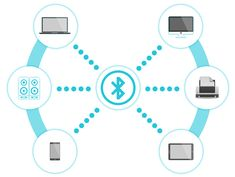
Bluetooth connects nearby devices without cables.
It is commonly used for earbuds, speakers, keyboards, watches, and file sharing.
Open Bluetooth settings, turn it on, and select the correct device name. The accessory may need to be placed in pairing mode.
Bluetooth should be turned off when it is not needed, especially in public places.
Avoid accepting unexpected pairing requests from unknown devices.
Improve Smartphone Battery Life
Reducing screen brightness can help improve battery life.
Users can also close unnecessary heavy applications, reduce background activity, and activate battery-saving mode.
Location services, Bluetooth, and mobile data can be turned off when they are not required.
Use certified chargers and avoid exposing the phone to excessive heat.
If the battery drains unusually fast, check battery usage settings to identify applications consuming too much power.
Free Up Storage Space
Low storage can make a device slow and prevent updates.
Users should remove duplicate photos, old videos, unused apps, and unnecessary downloads.
Large files can be moved to cloud storage or an external drive.
Important information should be backed up before deletion.
Built-in storage tools can show which applications and files use the most space.
Maintaining free storage helps the device operate more smoothly.
Basic Troubleshooting
When a device or app stops working, start with simple checks.
Close and reopen the application. If the problem continues, restart the device.
Check the internet connection, storage space, battery level, and available updates.
Think about any recent changes, such as a new app or setting.
Make one change at a time and test the result before trying another solution.
Protect Personal Information
Personal information includes names, addresses, photos, passwords, account details, and financial information.
Users should share only the information required for a trusted service.
App permissions should be reviewed regularly. Unknown applications should not receive access to contacts, cameras, microphones, or location without a clear reason.
Privacy settings on social media should also be checked.
Public posts can be copied or shared beyond the original audience.
Use Social Media Responsibly
Social media can be useful for communication, learning, business, and entertainment.
Users should avoid sharing private information publicly and should be careful when accepting unknown requests.
Suspicious accounts, fake offers, and harmful content should be reported or blocked.
Strong passwords and two-factor authentication should be enabled.
Time limits and notification controls can help reduce distractions and excessive use.
Learn Basic Online Payments
Online payments can be made through banking apps, digital wallets, cards, or payment gateways.
Always check the website or app before entering payment details.
Never share a PIN, password, security code, or one-time password.
Avoid completing financial transactions through public Wi-Fi.
After payment, save the receipt or confirmation message.
Users should review transaction history regularly and report unknown activity immediately.
Use Video Calling Apps
Video calling apps are used for classes, business meetings, interviews, and communication.
Before joining a call, check the camera, microphone, internet connection, and background.
Use headphones when possible to reduce echo.
Keep the microphone muted when not speaking in a large meeting.
Only join links sent by trusted people or organizations.
Users should leave the meeting and report suspicious behaviour when necessary.
Learn Basic Document Skills
Document applications help users write letters, reports, assignments, and notes.
Beginners should learn how to type, save, open, rename, and format a document.
Headings, paragraphs, and clear spacing improve readability.
Files should be saved regularly and given meaningful names.
Before sharing a document, check spelling, personal information, and file permissions.
Learn at a Comfortable Pace
Technology skills improve through regular practice.
Beginners should start with simple tasks and learn one feature at a time. Trying to understand everything in one day can feel overwhelming.
Keeping short notes can help users remember important steps.
Mistakes are a normal part of learning, but users should avoid experimenting with sensitive settings without a backup.
Reliable tutorials and official support pages can provide additional guidance.
Common Beginner Mistakes
One common mistake is clicking unknown links or advertisements.
Another is using simple passwords or sharing verification codes.
Beginners may also install too many apps, ignore updates, or delete files without checking them.
Making several settings changes at once can create confusion.
Reading instructions carefully and asking a trusted adult or professional for help with risky tasks can prevent serious problems.
When to Get Professional Help
Some problems require technical support.
Professional help may be needed for hardware damage, liquid exposure, battery swelling, repeated system failures, data recovery, or advanced website errors.
Users should stop using a device if it produces smoke, sparks, excessive heat, or a strong burning smell.
Trying to repair electrical or internal hardware without training may cause injury or greater damage.
Back up important data before taking a device for repair whenever possible.
Conclusion
Beginner Tech Guide information can help new users understand devices, applications, internet services, files, passwords, and online safety. Learning basic skills makes technology easier to use and reduces common mistakes.
Users should install trusted applications, update software, create strong passwords, protect personal information, and back up important files. Simple troubleshooting steps such as restarting a device and checking the internet can solve many everyday problems.
Technology becomes easier with regular practice. By learning one skill at a time and following safe digital habits, beginners can use smartphones, laptops, and online tools with greater confidence and independence.